My NAS - Part 1
Installation and Basic Setup

This page was updated to reflect that I’m running OpenWRT 25.12.5, not 24.10.8.
I STRONGLY recommend making a backup of the entire EMMC onto a USB stick or drive before proceeding further!! This way, if something goes wrong, you can restore the factory OS so there is no question about whether your warranty is still intact!
Installation of OpenWRT
Let’s start by downloading and unpacking our OpenWRT install. I’m using 25.12.5, since it supports Docker (again).
1
2
wget https://downloads.openwrt.org/releases/25.12.5/targets/x86/64/openwrt-25.12.5-x86-64-generic-squashfs-combined-efi.img.gz
gunzip openwrt-25.12.5-x86-64-generic-squashfs-combined-efi.img.gz
Next, we need to write the image to the EMMC. I used my Ubuntu installation on the NVMe that I installed, but you may want to use a Ubuntu install image written to USB to do this.
1
dd if=openwrt-25.12.5-x86-64-generic-squashfs-combined-efi.img of=/dev/mmcblk0 status=progress
Now, reboot the system. We need to get into the BIOS or UEFI with Ctrl+F12 and deactivate the watchdog under Advanced, which would reboot the NAS every 180 seconds if there was no software feedback. 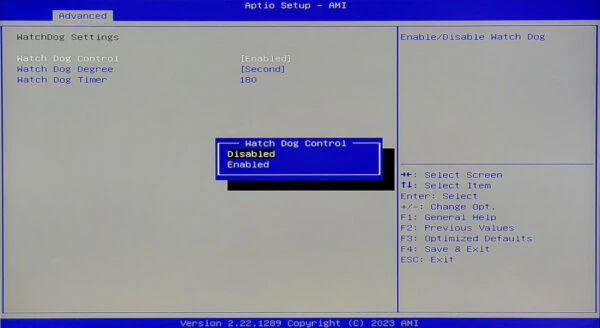
Save the settings and reboot again. The NAS should boot into OpenWRT now.
Let’s Get Started
Our OpenWRT install is currently what I would call “router mode”, meaning it tries to be DHCP and DNS server for the network. We actually don’t need this configuration, as it seems to block internet access throughout my network. To fix this, we need to execute the following commands so that the NAS gets its IP address from our router.
1
2
3
4
5
uci set network.lan.proto='dhcp'
uci -q del network.lan.ipaddr
uci -q del network.lan.netmask
uci commit
service network restart
Next, we need to stop it from advertising itself as the ONLY DHCP server on the network. We also need to disable DNS request functionality from dnsmasq, as the router should handle that.
1
2
3
4
5
uci -q del dhcp.@dnsmasq[0].authoritative
uci set dhcp.@dnsmasq[0].port='0'
uci set dhcp.@dnsmasq[0].localuse='0'
uci commit
service dnsmasq restart
Yay! We’ve fixed the networking problems that installing OpenWRT on the NAS created! (Eye roll)
Bash
We need a better shell than what busybox offers, so we’re going to install bash, change the default shell for root, then upgrade wget to the full version that supports HTTPS. We also need to download the bash initialization script, which has a dos-equivalant cls command using the built-in clear command:
1
2
3
4
5
6
7
8
9
10
# Install bash, change default shell
apk update
apk add bash wget-ssl nano-plus zram-swap
sed -i "s|/bin/ash|/bin/bash|g" /etc/passwd

# Download bash startup script:
FILE=/root/.shinit
wget https://xptsp.github.io/assets/files/bashrc.sh -O ${FILE}
chmod +x ${FILE}
echo "${FILE}" >> /etc/sysupgrade.conf
Upgrading to OpenSSH
We can now start installing packages. However, there is a message in 24.10.8 that annoys me when I log in:
1
2
3
** WARNING: connection is not using a post-quantum key exchange algorithm.
** This session may be vulnerable to "store now, decrypt later" attacks.
** The server may need to be upgraded. See https://openssh.com/pq.html
Now, I could add a DropBear SSH configuration directive to disable the warning, however, upgrading to OpenSSH seems to be the better choice for me, as it seems to actually FIX the issue. So let’s do so:
1
2
3
4
5
6
7
8
9
10
11
# Move Dropbear to port 2222:
uci set dropbear.@dropbear[0].Port=2222
uci set dropbear.@dropbear[0].enable=0
uci commit dropbear
/etc/init.d/dropbear restart

# Install and configure OpenSSH:
apk add
apk add openssh-server openssh-sftp-server
sed -i 's/^#PermitRootLogin prohibit-password/PermitRootLogin yes/' /etc/ssh/sshd_config
/etc/init.d/sshd restart
Set the Root password
Setting the root password prevents unauthorized access. I’m going to set my root password to MoeLarryCurly. Obviously, DON’T use this password for your machine.
1
(echo MoeLarryCurly; echo MoeLarryCurly) | passwd
Other Small Settings
We need to enable dropping invalid packets and enable software and hardware flow offloading:
1
2
3
4
5
uci set firewall.@defaults[0].drop_invalid='1'
uci set firewall.@defaults[0].flow_offloading='1'
uci set firewall.@defaults[0].flow_offloading_hw='1'
uci commit
service firewall restart
Setting Host Name and Time Zone
We need to change our hostname and set the time zone. I’m choosing “HomeLab” for the host name and I live in the “America/Chicago” timezone. Change your timezone to where you live.
1
2
3
4
5
uci set system.@system[0].hostname="HomeLab"
uci set system.@system[0].zonename="America/Chicago"
uci set system.@system[0].timezone='CST6CDT,M3.2.0,M11.1.0'
uci commit
service system restart
Install XPtsp APK repository
Let’s install the XPtsp APK repository, then install a miscellaneous few packages:
1
2
3
4
5
6
7
8
9
10
11
12
FILE=/etc/apk/repositories.d/customfeeds.list
if ! grep -q xptsp.github.io ${FILE}; then
	echo "https://xptsp.github.io/openwrt-repo/apk/all/packages.adb" >> ${FILE}
	echo "https://xptsp.github.io/openwrt-repo/apk/x86_64/packages.adb" >> ${FILE}
	echo ${FILE} >> /etc/sysupgrade.conf
fi

FILE=/etc/apk/keys/xptsp.pem
test -f ${FILE} || wget http://xptsp.github.io/openwrt-repo/apk/xptsp.pem -O ${FILE}
echo ${FILE} >> /etc/sysupgrade.conf
apk update
apk add peanut nano-plus wget-ssl
Install our theme
Let’s install the luci-theme-footstrap package, then set it as active theme:
1
2
3
4
apk add luci-theme-footstrap
uci set luci.main.mediaurlbase='/luci-static/footstrap'
uci set footstrap.settings.palette='hicontrast'
uci commit
Since I have several machines running similar software, it’d be nice to differentate between them at a glance when I’m logging in. Let’s customize the LuCI authorization page by adding the logo SVG to it (pic is from my OpenWRT VM):
1
2
3
FILE=/usr/share/ucode/luci/template/themes/footstrap/sysauth.ut
sed "s|<form method=\"post\" class=\"fs-login\">|<form method=\"post\" class=\"fs-login\">\n\t\<div style=\"text-align: center\"\>\<img src=\"/luci-static/footstrap/logo.svg\" width=\"100\" height=\"100\" /></div>|g" ${FILE}
echo "${FILE}" >> /etc/sysupgrade.conf
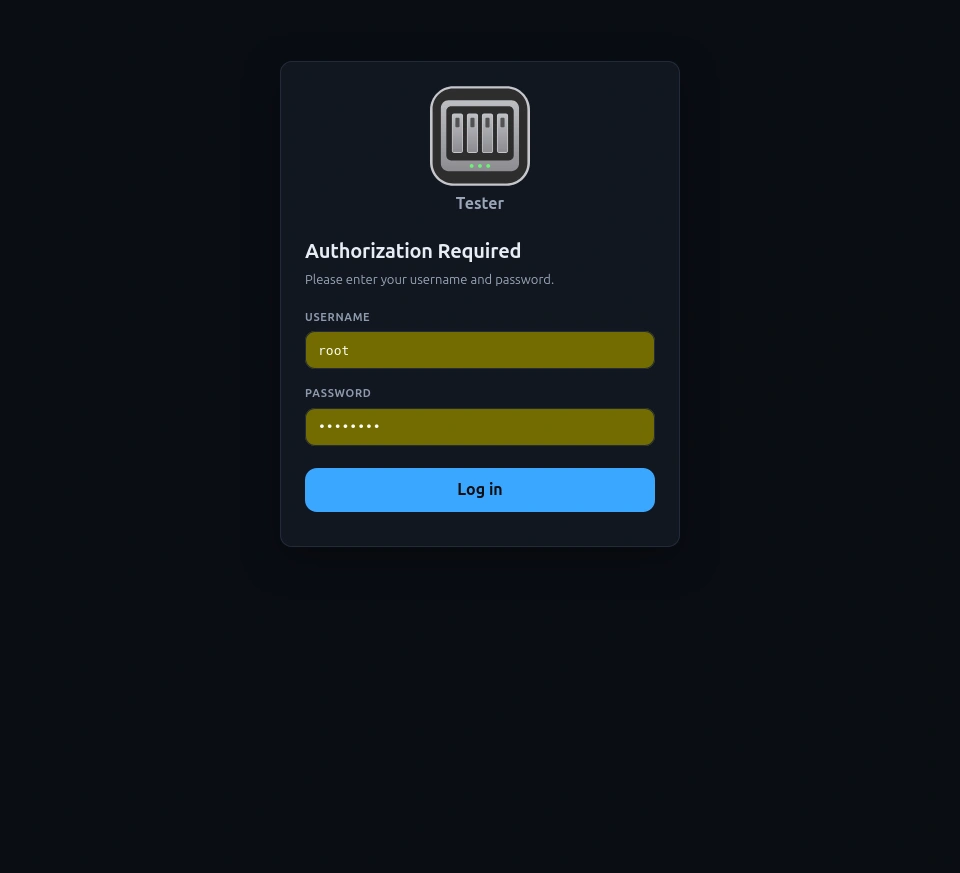
You can replace the footstrap icons with this icon from DashboardIcons.com. I’ve already resized to match the original icon size and converted it to SVG for this project, so you can take a shortcut and download mine to your machine if you want.
1
2
3
4
5
for REMOTE in app-icon-192.png logo.svg logo_48.png; do
	FILE=/www/luci-static/footstrap/${REMOTE}
	wget https://xptsp.github.io/assets/img/nas/icon-${REMOTE} -O ${FILE}
	echo "${FILE}" >> /etc/sysupgrade.conf
done
Install DXP2800 Fan Control
I need a patched version of the IT87 kernel module so I can properly read the temperature and control the fans. Let’s install the packages necessary for fan control:
1
apk add kmod-hwmon-it87-patched lm-sensors luci-app-fancontrol
Let’s configure the fancontrol package. These settings work on my NAS:
1
2
3
4
5
6
uci set fancontrol.settings.enabled='1'
uci set fancontrol.settings.thermal_file='/sys/class/hwmon/hwmon2/temp1_input'
uci set fancontrol.settings.fan_file='/sys/class/hwmon/hwmon3/pwm3'
uci set fancontrol.settings.enable_file='/sys/class/hwmon/hwmon3/pwm3_enable'
uci commit
service fancontrol restart
That should do it for the controlling the fan! We also have an awesome new service in the LuCI web panel to control our settings if the settings aren’t correct!
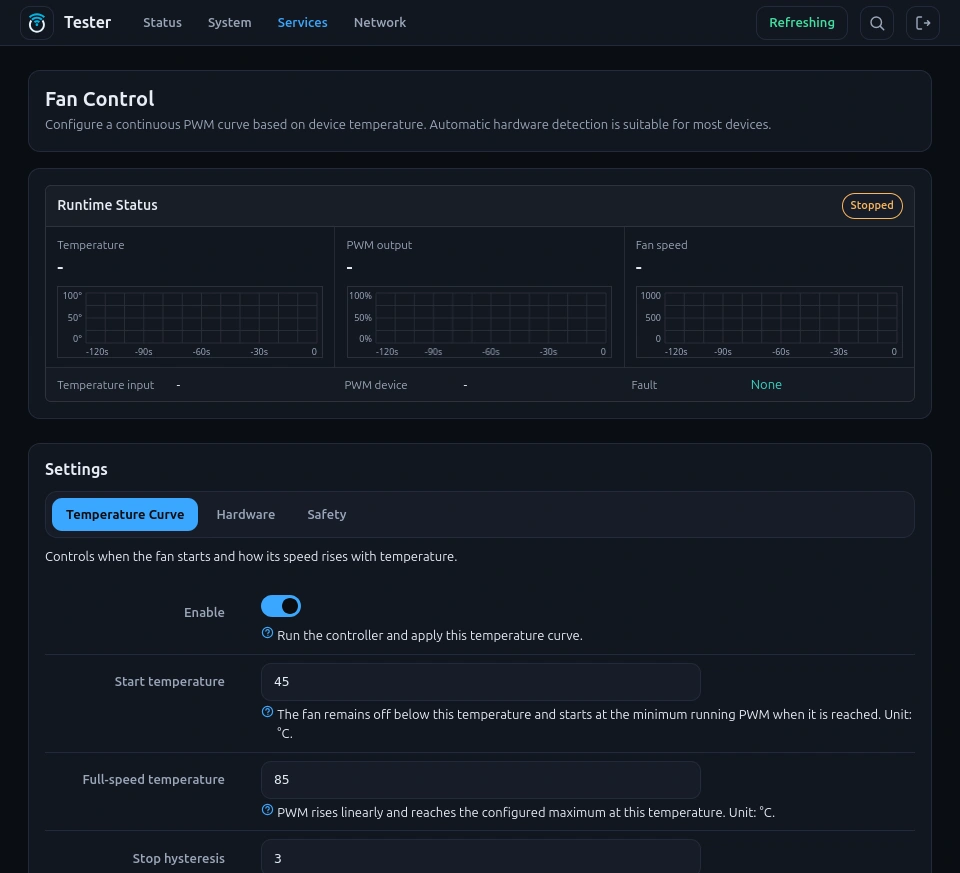
Power and Network LED Support
We need to install the support packages for our front LEDS:
1
apk add kmod-i2c-i801 i2c-tools kmod-leds-gpio kmod-led-ugreen
We need to add lines before the exit 0 line in /etc/rc.local to order to populate the /sys/class/leds directory upon reboot:
1
2
3
4
FILE=/etc/rc.local
sed -i '/^exit 0$/i sleep 3\necho led-ugreen 0x3a > /sys/bus/i2c/devices/i2c-0/new_device' ${FILE}
chmod +x ${FILE}
echo "${FILE}" >> /etc/sysupgrade.conf
We need to configure the Power and Network LEDs so that they function as expected:
1
2
3
4
5
6
7
8
9
10
11
12
13
14
15
16
uci set system.led_network=led
uci set system.led_network.name='Network'
uci set system.led_network.sysfs='netdev'
uci set system.led_network.trigger='netdev'
uci set system.led_network.dev='eth0'
uci add_list system.led_network.mode='link'
uci add_list system.led_network.mode='tx'
uci add_list system.led_network.mode='rx'

uci set system.led_power=led
uci set system.led_power.name='Power'
uci set system.led_power.sysfs='power'
uci set system.led_power.trigger='default-on'

uci commit
service led start
Hard Drive LED Support
The hard drives are a little harder, as there is no kernel module that will function as expected. So we need to install a new program called hdd-led-monitor and configure it to control the disk LEDs:
1
2
3
4
5
6
7
8
9
10
11
12
apk add luci-app-hdd-led-monitor

uci set hdd_led.bay1=drive
uci set hdd_led.bay1.enabled='1'
uci set hdd_led.bay1.device='sda'
uci set hdd_led.bay1.led_file='/sys/class/leds/disk1/color'
uci set hdd_led.bay2=drive
uci set hdd_led.bay2.enabled='1'
uci set hdd_led.bay2.device='sdb'
uci set hdd_led.bay2.led_file='/sys/class/leds/disk2/color'
uci commit
service hdd_led restart
Our drive LEDs should now be working properly! As an additional bonus, we now have an additional LuCI applet to control the disk monitoring program! 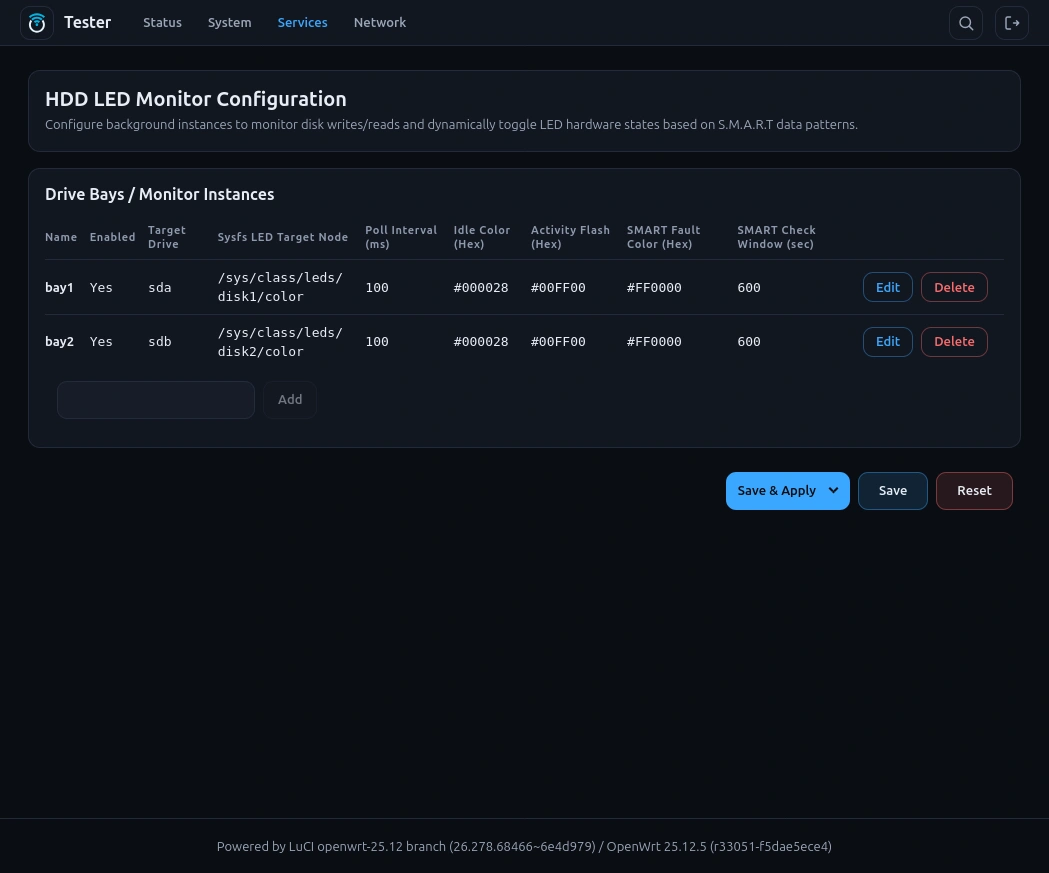
Summary
This should have gotten the basics ready for my NAS. Next, we tackle replacing UHTTPD with NGINX, and customizing the configuration in Part 2….